Rust Server Hosting
How to Update Your Rust Server Description, Banner Image, and Website URL
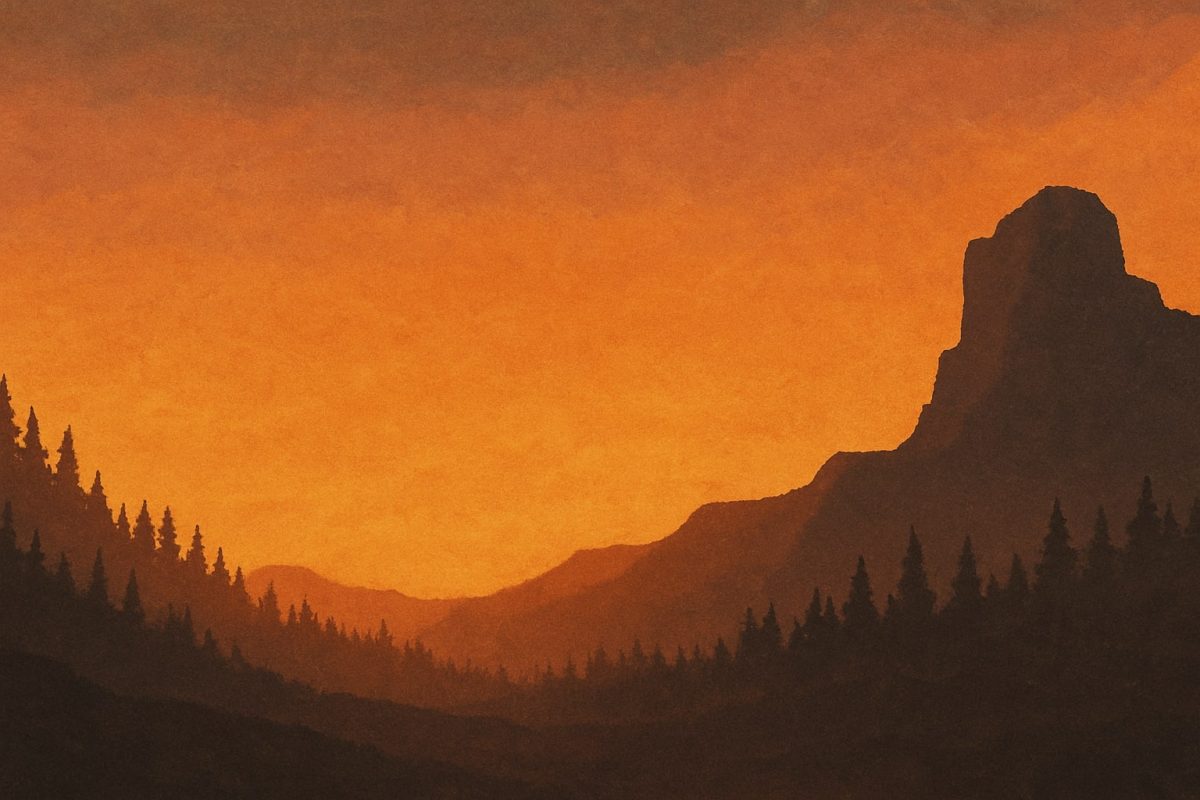
If you’re running a Rust server, your server description, banner image, and website URL are the first things players see in the server browser. Getting these dialed in makes your server look way more professional and can seriously help with player retention. Here’s the quick, no-nonsense walkthrough.
ℹ️ Important Notice
If you don’t see your updated server description, header image, or URL after changing them, you may be seeing cached data. Make sure to restart both your Rust server and your Rust client so the server browser can refresh.1. Navigate to the server cfg folder and open server.cfg. If the file doesn’t exist then create it.
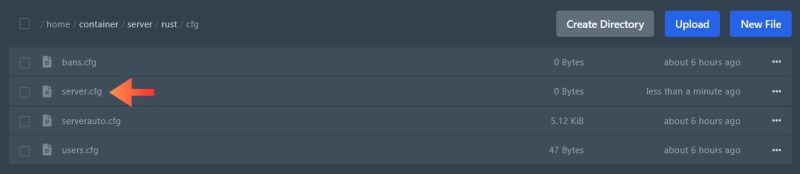
2. Add and update the following config options:
server.description “Check out modpulse.com for high performance Rust plugins.”
server.headerimage “https://i.imgur.com/UTdGanu.jpeg”
server.url “https://www.modpulse.com”

3. Open your servers console and run the command server.readcfg to update the changes.
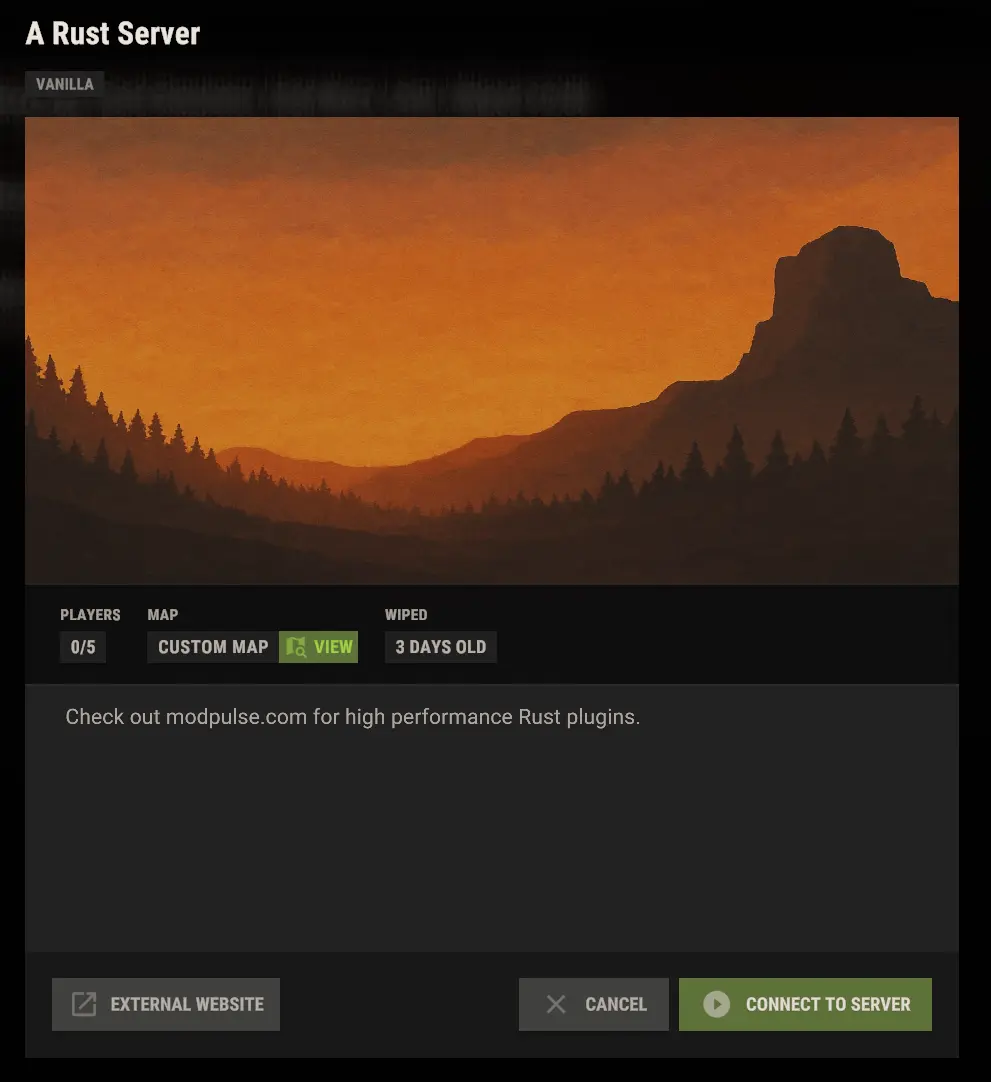
All set.
Your server has been customized and will stand out from the crowd.
TIPS AND TRICKS
1. Use \n to add a new line to your server description. You can also use this message editor tool to make and preview changes. https://www.modpulse.com/message-editor/
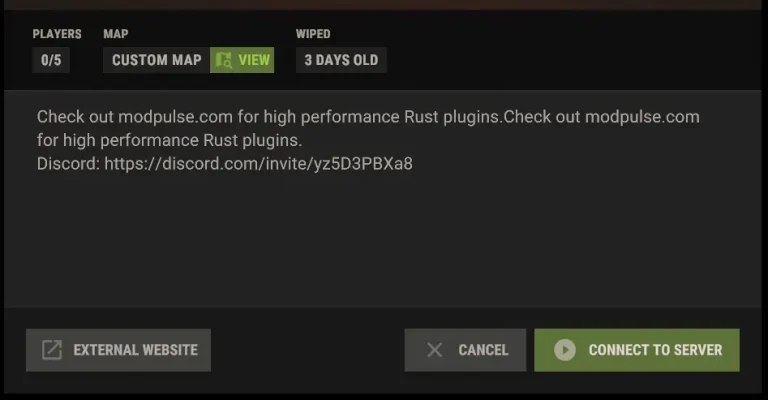
server.description “Check out modpulse.com for high performance Rust plugins.\nDiscord: https://discord.com/invite/yz5D3PBXa8″

2. For a Rust server header image, use dimensions of 512×256 or 1024×512 pixels.
3. To get a link for your header image, you can use a hosting service like imgur.
Make sure the link ends with:
.png
.jpg
.jpeg
✅ https://i.imgur.com/UTdGanu.jpeg
❌ https://imgur.com/UTdGanu
Right click → Copy image address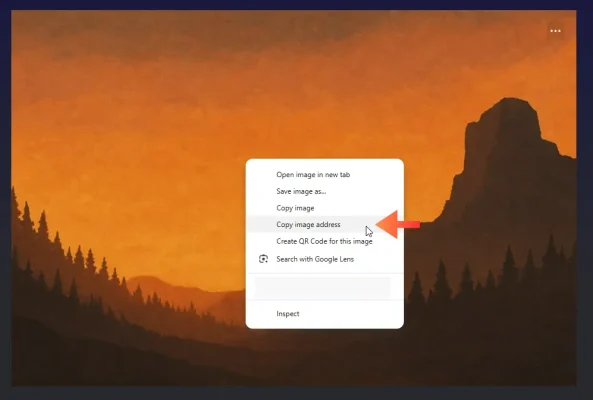
4. Consider hiring an artist to create a custom banner for your server. This will greatly improve your player retention and trust. Check out the design crew art studio to get one.
Design Crew Discord: https://discord.gg/2gFrfHecZt